flycun's blog

From one to infinity

设置Python下载镜像

uv下载python是通过https://github.com/indygreg/python-build-standalone项目的releases进行下载,uv本身提供了下载镜像参数UV_PYTHON_INSTALL_MIRROR

1
2
export UV_PYTHON_INSTALL_MIRROR=https://github.com/indygreg/python-build-standalone/releases/download
uv python install 3.13.1

长期使用可以添加到~/.bashrc

1
2
# .bashrc
export UV_PYTHON_INSTALL_MIRROR=https://github.com/indygreg/python-build-standalone/releases/download

设置Packages下载镜像

uv可以像pip一样管理依赖,但是uv不会读取pip的配置,所以要单独设置镜像地址。

uv本身提供的设置默认下载地址的环境变量名称为UV_DEFAULT_INDEX.

除了环境变量,还可以改配置文件、设置选项等.

这里以清华Pypi镜像源为例子

临时使用

1
ux add --default-index https://mirrors.tuna.tsinghua.edu.cn/pypi/web/simple requests

长期使用

可以更改项目的配置文件pyproject.toml或者uv.toml,也可以设置.bashrc

1
2
3
4
5
# pyproject.toml
[[tool.uv.index]]
url = "https://mirrors.tuna.tsinghua.edu.cn/pypi/web/simple"
default = true

1
2
3
4
# uv.toml
[[index]]
url = "https://mirrors.tuna.tsinghua.edu.cn/pypi/web/simple"
default = true
1
2
# .bashrc
export UV_DEFAULT_INDEX="https://mirrors.tuna.tsinghua.edu.cn/pypi/web/simple"

FreeSWITCH 呼叫身份校验

配置auth-calls

conf/sip_profiles/internal.xml

1
 <param name="auth-calls" value="true"/>

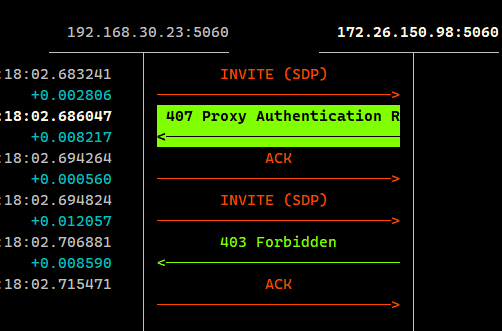
当auth-calls = true 时,呼叫时是需要身份校验的。发起鉴权挑战后,如果授权密码错误,将会拒绝。
image.png

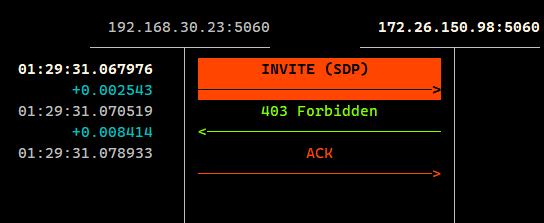
当auth-calls = false 时,呼叫不需要身份校验。将由ACL进行检验。如果ACL校验不通过,直接拒绝。
image.png

freeswitch acl 拦截了:

1
2
3
[DEBUG] sofia.c:10547 verifying acl "domains" for ip/port 192.168.30.23:0.
[WARNING] sofia.c:10660 IP 192.168.30.23 Rejected by acl "domains"

配置ACL

设置conf/autoload_configs/acl.conf.xml
新增一条

1
 <node type="allow" cidr="192.168.30.23/32"/>

执行reloadacl reloadxml 让acl生效
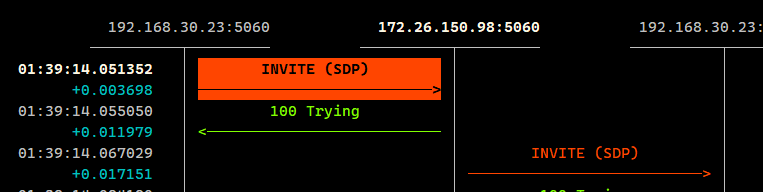
再次拨测,acl已经放通。
image.png

freeswitch acl 没有拦截日志“Rejected by acl”。

1
2
[DEBUG] sofia.c:10547 verifying acl "domains" for ip/port 192.168.30.23:0.
[DEBUG] sofia.c:7487 Channel sofia/internal/1003@172.26.150.98 entering state [received][100]

测试总结

当auth-calls=true,(需要进行用户身份校验),但ACL配置放通时,ACL的优先级要高,不会发起用户身份挑战。

freeswitch acl 日志显示“Access Granted”

1
2
[DEBUG] sofia.c:10547 verifying acl "domains" for ip/port 192.168.30.23:0.
[DEBUG] sofia.c:10576 IP 192.168.30.23 Approved by acl "domains[]". Access Granted.

安装RTPengine

1
2
3
sudo add-apt-repository ppa:davidlublink/rtpengine
sudo apt update
sudo apt-get install ngcp-rtpengine

配置

现在我们已经安装了 RTPengine,让我们设置基础知识,

有一个示例配置文件,我们将复制和编辑:

1
vi /etc/rtpengine/rtpengine.conf

我们将取消接口行的注释并将 IP 设置为我们将侦听的 IP:

1
2
3
4
5
6
7
8
9
10
11
12
13
14
15
16
17
18
19
20
[rtpengine]

#table = 0
# no-fallback = false
### for userspace forwarding only:
table = -1

### a single interface:
interface = 172.26.150.108
### separate multiple interfaces with semicolons:
# interface = internal/12.23.34.45;external/23.34.45.54
### for different advertised address:
# interface = 12.23.34.45!23.34.45.56

interface = any

listen-ng = 172.26.150.108:2223
# listen-tcp = 25060
# listen-udp = 12222

运行

一旦我们将其设置为我们的 IP,我们就可以启动服务:

1
systemctl restart rtpengine

一切顺利,它将启动并且 rtpengine 将运行。

您可以在自述文件中了解所有启动参数以及配置中所有内容的含义。

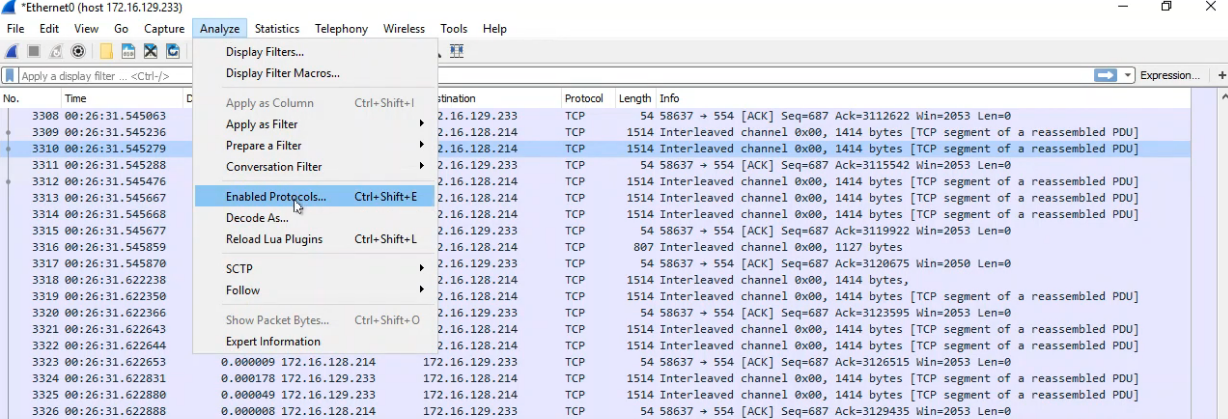
启动失败的处理

运行失败:

1
2
3
systemd[1220577]: ngcp-rtpengine-daemon.service: Failed to apply ambient capabilities (before UID change): Operation not permitted
systemd[1220577]: ngcp-rtpengine-daemon.service: Failed at step CAPABILITIES spawning /usr/bin/rtpengine: Operation not permitted

image.png

解决方式

在 /lib/systemd/system/ngcp-rtpengine-daemon.service 中,注释如下一行

1
#AmbientCapability=CAP_NET_ADMIN CAP_SYS_NICE

然后重新加载服务并重新启动

1
2
systemctl daemon-reload
systemctl restart rtpengine

image.png

0%